
Every team that runs work in monday.com and lives in Google Calendar ends up with the same chore: someone copies the date across. It takes ten seconds, which is precisely why it never gets fixed — and why the two drift apart by Thursday.
Mapping the board to a calendar once removes the chore. Every item with a date becomes an event, and it keeps up on its own.
The quiet cost of copying dates
Manual copying fails in a specific, predictable way. The first copy is accurate. The change three days later isn't copied at all, because whoever moved the item wasn't the person who put it in the calendar. Now the board says Friday, the calendar says Wednesday, and the meeting happens on the wrong assumption.
The fix isn't discipline. It is removing the second entry point.
How an item becomes an event
Add the sync view to a board, connect a Google account, pick a calendar, and tick the two rules for this direction: create an event when an item is created, and update it when the item changes.
From then on the flow is boring, which is what you want: an item with a date in the mapped column gets an event within seconds. Change the date, the title, the owner — the event follows. Items without a date are ignored entirely, so a backlog full of undated ideas stays out of your week.
Timed or all-day?A date column with a time produces a timed event. The same column without a time produces an all-day event. A timeline column produces a range. Pick the column that matches how your team already works, rather than changing the board to suit the calendar.
Mapping your columns
An event has fields; your board has columns. The mapping is yours to decide:
- Date — required. Date or timeline column.
- End date — optional; without it, events use a default duration.
- Event title — the item name by default, or any text column.
- Description, location — long text and location columns.
- Guests — a people column, synced as attendees by their monday e-mail.
- Meeting link — a link column, filled with the Google Meet or event link.
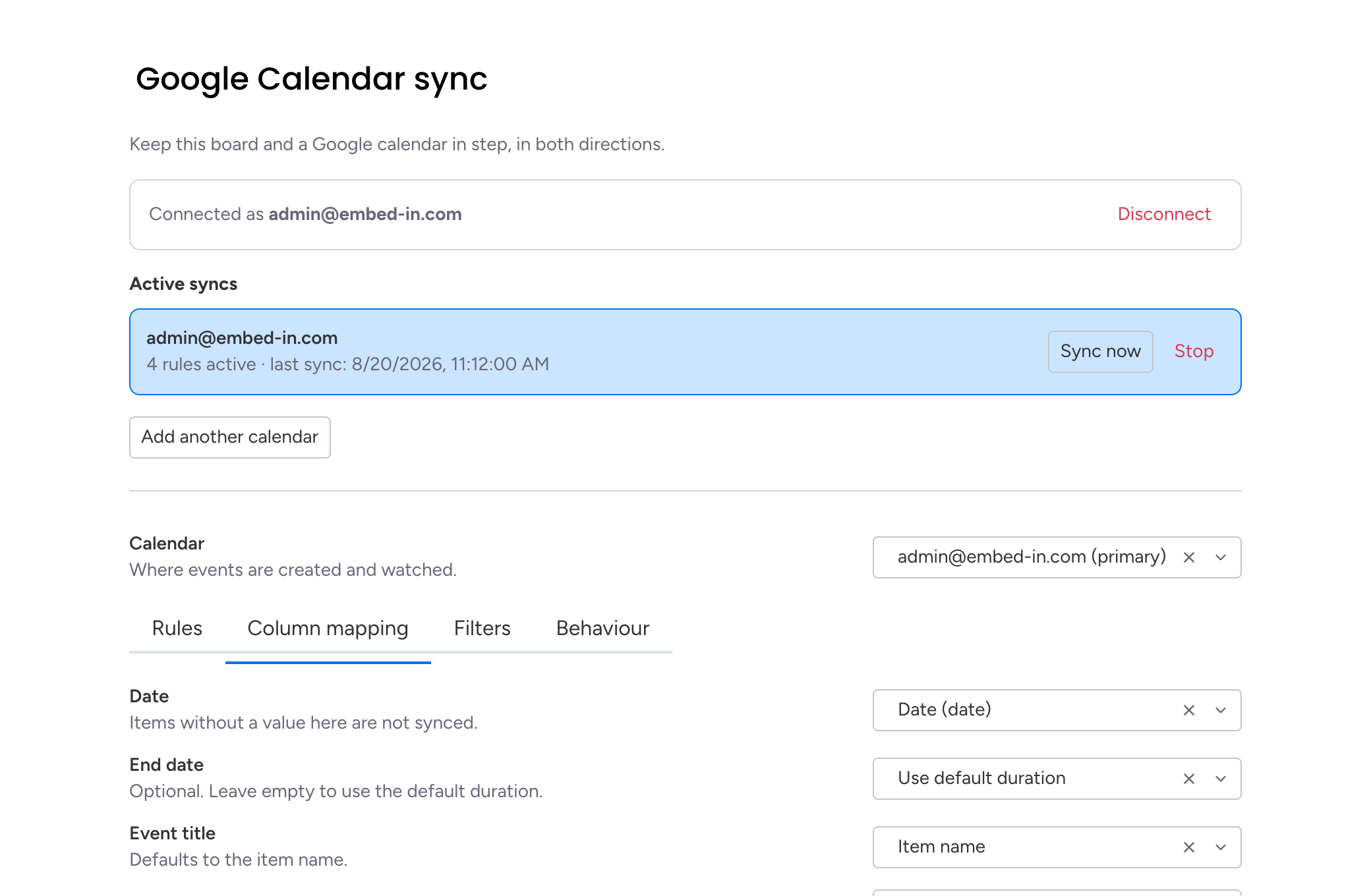
Map only what belongs in a calendar. An event with a title, a time and the right people is more useful than one carrying every field from the board.
Only the right items
Most boards hold more than commitments. Ideas, drafts, someday-maybes — none of that belongs in a calendar, and a sync that publishes everything gets switched off within a week.
Two controls keep it clean. Filters restrict the sync to chosen groups or statuses. The status rule goes further: the event is created only when an item reaches a status you pick, so nothing appears until the work is real.
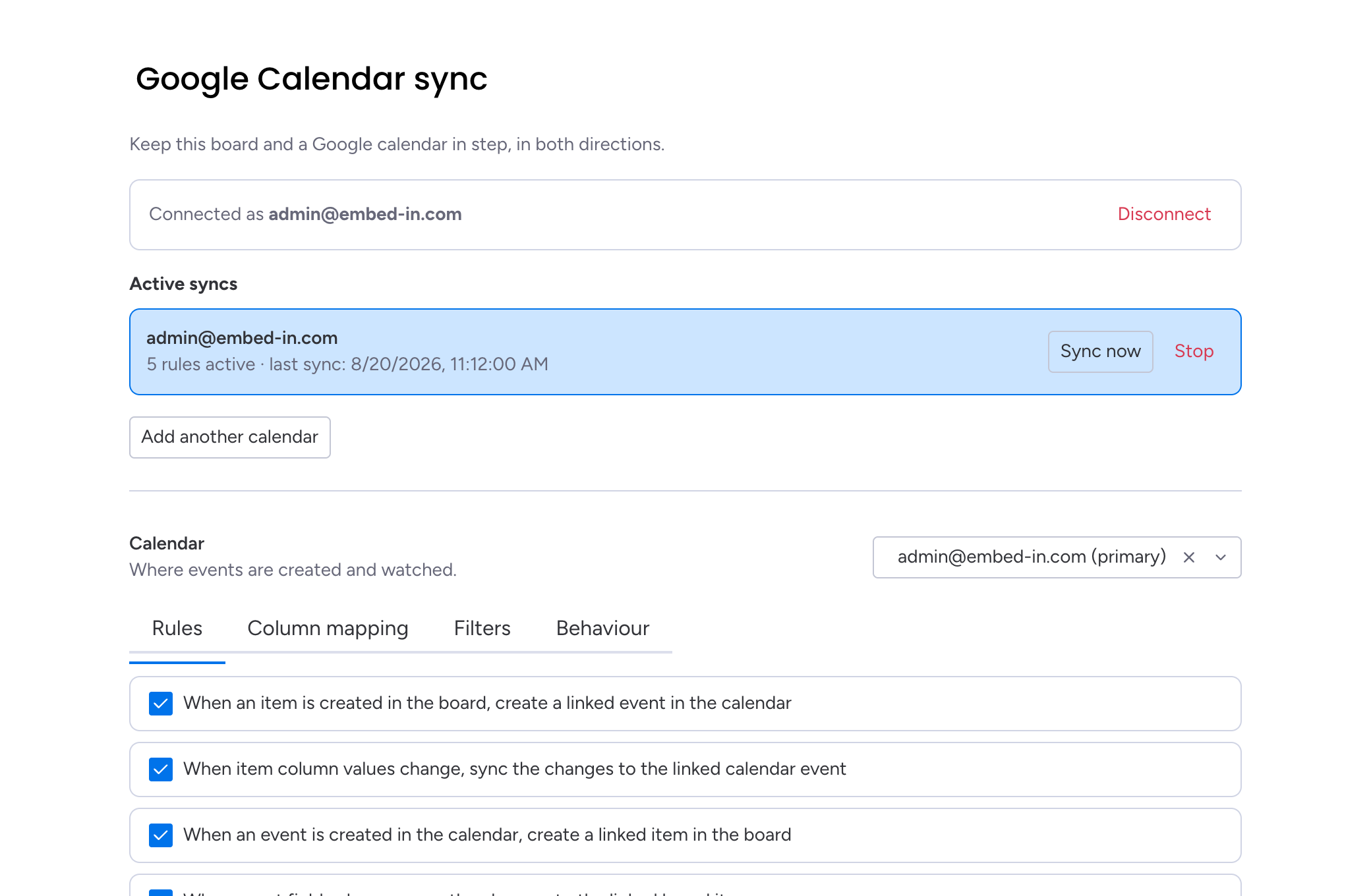
When things get deleted
Delete an item and its event goes with it. Take a date away and the event is retracted, because an item without a date is no longer an appointment. If an item stops matching a filter — moved to another group, status changed — its event is removed too, while the item itself stays on the board.
Nothing disappears from Google on its ownOnly events the app created for that board are touched. The rest of your calendar is never modified.
Once this direction is running, the reverse is a single tick: see turning Google Calendar events into monday.com items.
Embed & Sync Google Calendar
Embed a Google Calendar on your monday.com board, or keep a board and a calendar in step in both directions.
Key takeaways
- Copying dates by hand fails on the second change, not the first — the fix is removing the second entry point.
- Map a date or timeline column, plus whichever columns should fill the title, description, location, guests and meeting link.
- Filters and a status rule keep drafts and backlog out of the calendar.
- Clearing a date or filtering an item out retracts its event; the item itself stays on the board.