
A date lives in two places at once. It is a due date on a monday.com item, and it is an event in somebody's calendar. Keep both by hand and they drift within a week — the item moves, the meeting doesn't, and the person who needed to know finds out late.
Two-way sync removes the copying. Items with a date become calendar events. Move an event in Google and the linked item follows. Neither side is the master; both stay current.
What two-way sync actually means
One-way sync is easy to describe and easy to outgrow. Push items into a calendar and the calendar becomes read-only in practice: drag an event and your change is overwritten on the next pass. Pull events into a board and the board can't schedule anything.
Two-way means every change has a path back. Create an item with a date, and the event appears. Drag that event to Thursday, and the item's date says Thursday. Delete the event, and the item is dealt with the way you chose — archived, deleted, or simply stripped of its date.
The point isn't that everything syncs. It's that nothing has to be typed twice.
Setting it up
Sync lives in its own board view, separate from the embedded calendar, so adding it changes nothing about a calendar you already embedded.
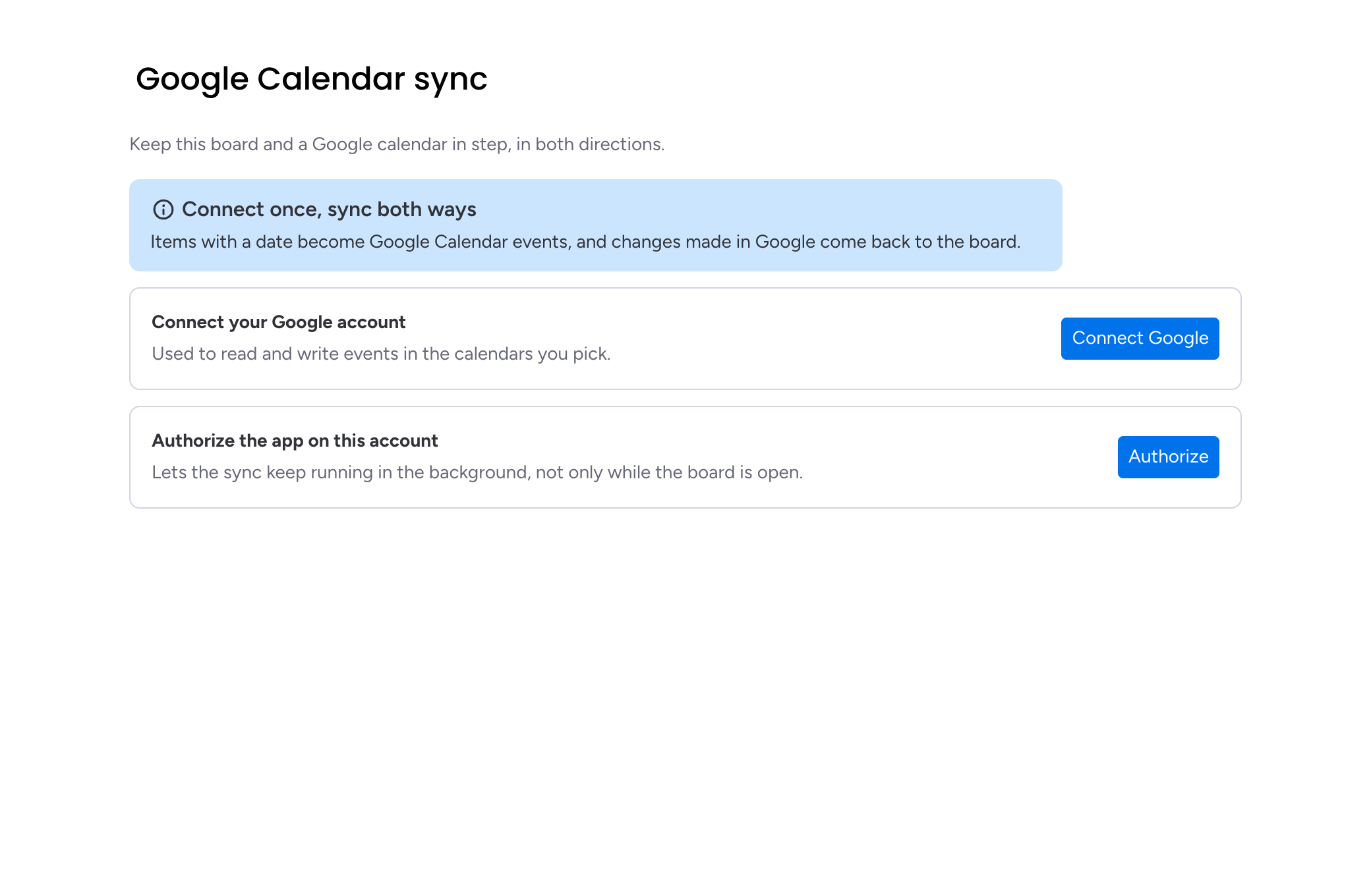
- Add the sync view. On the board, open the views menu and add Google Calendar Sync.
- Connect two accounts, once. Google, so the app can read and write events; and monday, so the sync keeps running when nobody has the board open.
- Pick a calendar. Any calendar you can edit. Read-only ones — holidays, someone else's shared calendar — can be embedded but not synced.
- Choose your rules and save. The first run pulls the calendar into the board; after that, changes flow as they happen.
Start on one boardPick the board where scheduling decisions are actually made, run it for a week, then roll it out. A sync nobody watches is how surprises accumulate.
Choosing the rules, not the direction
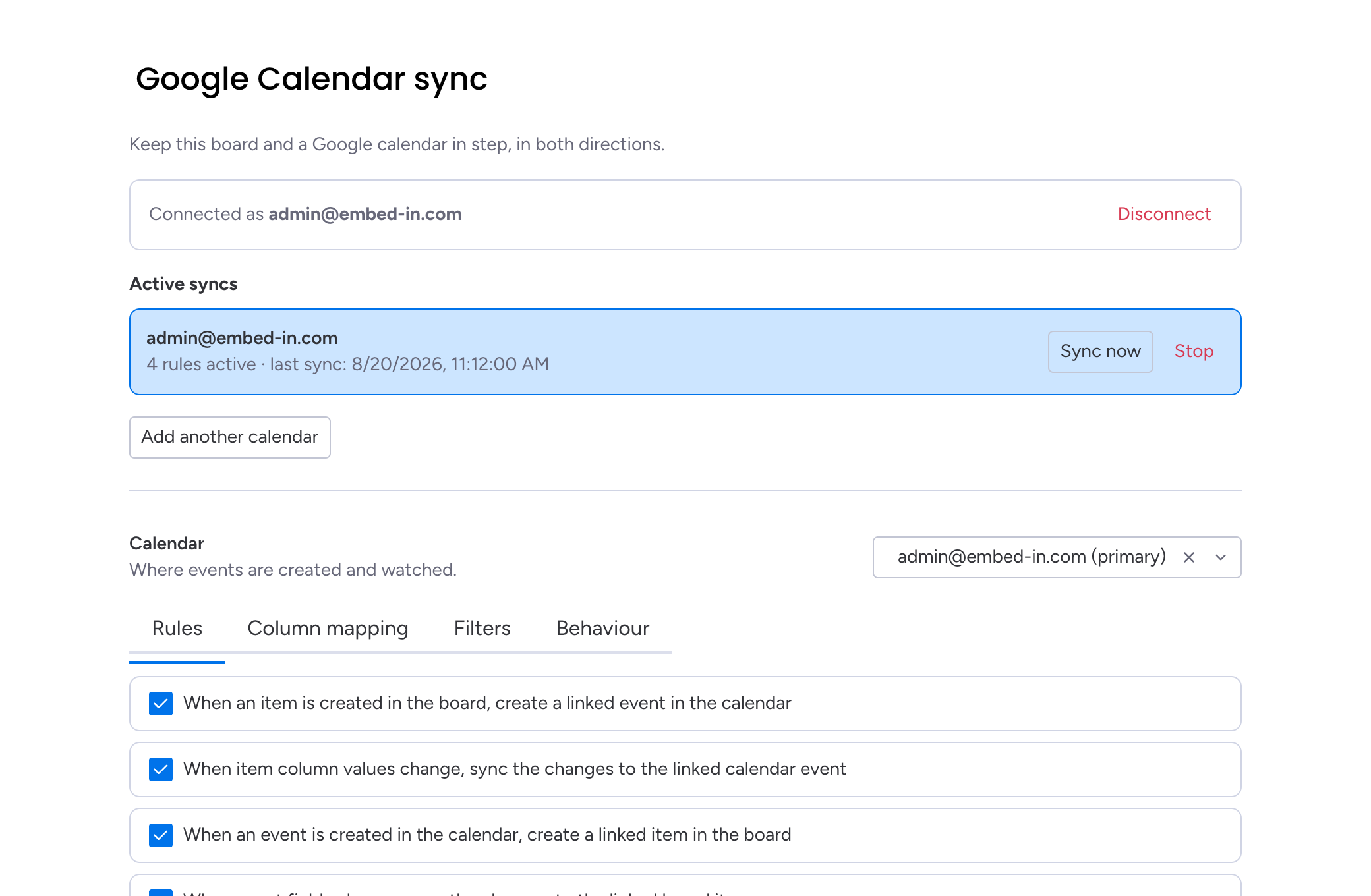
"Two-way" sounds like a single switch, but the useful version is four:
- When an item is created — a linked event appears in the calendar.
- When item columns change — the event follows.
- When an event is created in Google — a linked item appears on the board.
- When event fields change — the item follows.
Each is independent. Tick the first two and you have a board that publishes to a calendar. Tick the last two and you have a calendar that feeds a board. Tick all four and you have a genuine two-way sync — which is exactly what most teams want, once they see that turning any one of them off is a single click.
What syncs, and what stays put
The event is built from columns you choose: a date or timeline column decides when, and the item name, description, location, people and link columns fill in the rest. A date column with a time gives a timed event; without a time you get an all-day event; a timeline gives a range.
What doesn't move: updates, files, subitems, and anything you didn't map. The calendar shows the appointment, not the whole item — and that is the point. Nobody wants a comment thread in their calendar.
Recurring eventsA repeating series syncs as a single item, not one item per occurrence. A weekly stand-up shouldn't generate fifty-two rows on your board.
Keeping it predictable
Two systems writing to each other can turn into a loop: the app writes an event, Google reports a change, the app writes it back. Every event the app creates carries a hidden link to its item, and every write is compared against what was written last time, so an echo is recognised and dropped. In practice you never see it — which is the whole idea.
Three settings keep the rest sane:
- Filters. Limit the sync to certain groups or statuses, and the calendar stays free of drafts and backlog.
- The status rule. Create events only once an item reaches a chosen status — useful when a board holds plans that aren't commitments yet.
- The delete policy. Decide once what a deleted event does to its item: archive it, delete it, or clear the date and keep it.
If something ever looks out of step, a full pass runs nightly, and there's a Sync now button for when you don't want to wait.
Embed & Sync Google Calendar
Embed a Google Calendar on your monday.com board, or keep a board and a calendar in step in both directions.
Key takeaways
- Two-way sync means changes have a path back: items become events, and moved or deleted events reach the item.
- The direction isn't one switch — four independent rules let you run it one way, both ways, or somewhere in between.
- Events are built from columns you map, so the calendar shows the appointment and not the entire item.
- Filters, a status rule and a delete policy decide what reaches the calendar and what happens when an event disappears.