
 SOP & Compliance Checklists · Guide
When an auditor, a customer, or your own quality lead asks "who changed this, and when?", a screenshot won't do. You need a record that was captured as the work happened — not reconstructed afterward from memory. An audit trail in monday.com gives you exactly that: every change to a checklist is logged with the person and the timestamp, and you can export the whole thing as a report you can file, sign off, and verify later.
Native monday.com activity logs cover board-level changes, but the granular work inside a checklist — which task got reassigned, when an estimate changed, who ticked the final box — usually lives outside that log. SOP & Compliance Checklists records that detail as it happens and turns it into a print-ready audit report with a cryptographic fingerprint. This guide covers what gets recorded, how to export the report, how the fingerprint makes it tamper-evident, and where the honest limits of these controls are.
What the audit trail records
The audit trail captures every meaningful change to a checklist and stamps it with who made it and when. That includes status changes, task assignments, due dates, effort estimates, and sign-off events. Nothing is entered by hand into a log — the record is a by-product of the work itself, which is exactly what makes it trustworthy.
You read it in two places, depending on how wide a view you need:
- Per-item History — open any monday.com item and its checklist has its own History showing every change to that item's tasks in order, so you can answer "what happened on this one?" without leaving the item.
- Board-wide History tab — a single History tab that streams activity across every item on the board, filterable by checklist. This is the view you hand to an auditor who wants the whole board's trail, not one item at a time.
Because the trail already ties every event to a person and a moment, it doubles as an accountability record long before anyone needs a formal report — the same log that proves compliance also tells you who's actually doing the work.
Filter the board trail by checklistThe board-wide History streams every item's activity, which is a lot on a busy board. Filter it by checklist to isolate one process — the change-control routine, say — so the auditor sees only the trail that's in scope.
How to export the audit report
The live trail is for working; the audit report is for filing. It's a PDF you generate on demand, and you can produce it from two places:
- From Settings → Audit report, when you want to export the record for a checklist deliberately as a governance step.
- Straight from the sign-off panel, so the moment a reviewer or approver signs off you can capture the report that certifies that state.
Whichever route you take, the PDF contains the same five things, in a fixed layout that reads cleanly on paper:
- A completion summary and the current sign-off status — where the checklist stands and whether it's certified.
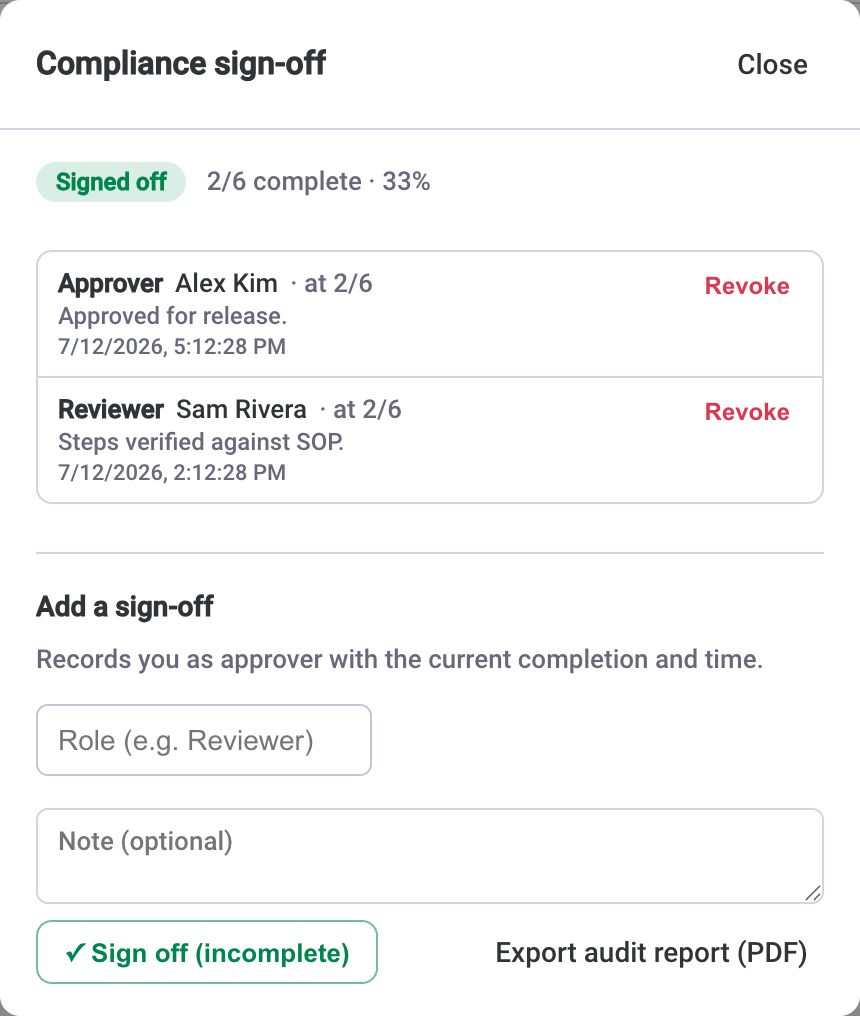
- The sign-off record — the role, the person, the time, and the completion at signing (for example, "at 6/6").
- The full task table — every task and its state, so the report stands on its own without the app.
- The complete activity trail — the same who-and-when history, laid out for reading.
- A SHA-256 document fingerprint — the hash that makes the copy verifiable later.
The SHA-256 fingerprint and why it's tamper-evident
The fingerprint at the foot of the report is a SHA-256 hash computed from the report's own data. It's deterministic: the same data always produces the same hash, and any change to the underlying record — a re-ticked task, an edited task name, a new sign-off — produces a completely different one. There's no way to alter the work quietly and keep the same fingerprint.
That property is what makes a filed report tamper-evident. The workflow is simple:
- Export the report at the moment that matters and file the PDF, noting its fingerprint.
- Later — during an audit, a dispute, or a periodic review — re-export the report from the same checklist.
- Compare the two fingerprints. Identical hashes mean the record is unchanged; a different hash means something moved, and the activity trail will show you what.
A signature proves someone approved. A fingerprint proves the thing they approved is still the thing you're holding.
It's worth being precise about what "tamper-evident" means here: the fingerprint doesn't prevent anyone from changing the checklist — governance controls do that — it makes any change detectable after the fact. That's the right guarantee for an audit record, where the goal is to prove integrity rather than to lock the data.
Pair the trail with a formal sign-off
An audit trail tells you what happened; a sign-off tells you someone with authority accepted it. The two are designed to work together. Sign-off is off by default — an admin enables it in Settings → Compliance sign-off — and once on, a signer certifies the whole checklist, recording their role (Reviewer or Approver), who they are, when they signed, and the completion at that moment. Multiple sign-offs stack, so a Reviewer can sign and then an Approver can add theirs, and any signer or an admin can revoke.
The header status makes the state legible at a glance: Sign off while it's pending, a green Signed off once certified, and an amber Modified after sign-off if anything changes afterward. That amber state is stricter than a simple progress check — it's driven by a content signature captured at sign time, so it catches any change to the work: a task text edit, a reassignment, a reorder, or a done-swap, not just a changed completion count. If the record moves after someone certified it, the badge tells you before the fingerprint ever has to.
For the full walkthrough of enabling and using sign-off, see compliance sign-off for monday.com checklists. And to lock down who can change the work in the first place, admins can turn on Lock structure (only admins add, edit, delete, or reorder tasks and apply templates) and Restrict completion (only a task's assignee or an admin can mark it done) from Settings.
Where the data livesSOP & Compliance Checklists runs entirely on monday.com's own infrastructure and storage — there's no external database or separate hosting, and your audit trail, sign-off records, and reports never leave your monday.com account.
The honest caveat: compliance-style, not certified
These are compliance-style controls — a formal sign-off, an immutable-by-design activity trail, and a tamper-evident content fingerprint — built for internal governance and quality-management (QMS) use. They're the right fit for standardising sign-offs, keeping an accountable record, and being able to prove after the fact that a filed report hasn't changed.
What they are not is a validated, regulator-certified electronic-signature system. If your context requires something like 21 CFR Part 11 validation, or a legally binding e-signature platform, this app doesn't claim to be that, and you shouldn't treat it as one. Use it to run a disciplined internal process with real audit evidence; pair it with a certified system where a regulator specifically demands one.
Within that boundary the combination is genuinely useful: the trail records the truth as it happens, sign-off certifies a state, the fingerprint lets you verify a filed copy, and everything stays on monday.com's own infrastructure. For teams who want compliance discipline without standing up separate audit software, that's usually exactly the level of control they were missing.