
 SOP & Compliance Checklists
A checklist used by one person needs no permissions at all. A checklist used by a team, on a board other people can see, that someone will later rely on as a record — that is a different object, and the difference shows up in ways that are easy to miss until they cost something.
Three settings cover almost all of it: Lock structure, Restrict completion, and how the app treats monday.com's view-only seats. This guide covers what each one actually does, the specific failure each one prevents, and which combination fits which kind of work.
Why a shared checklist needs governance
Shared checklists degrade in two directions, and neither involves anybody acting in bad faith.
The first is structural drift. Somebody removes a step that felt redundant this week. Somebody reorders two tasks to match how they personally work. Somebody rewords a step and slightly changes what it asks for. Individually all reasonable; collectively, three months later, the procedure being run is not the procedure that was agreed, and nobody can point to when it changed.
The second is unearned completion. One person runs down the list ticking everything at the end, including the four steps other people were responsible for. The checklist now says the work was done. It is not evidence of anything — but it looks exactly like evidence, which is worse than having none.
SOP & Compliance Checklists addresses both with settings an admin turns on per board, in Settings → Permissions.
Guard rails for shared boards, not account-level securityThese controls govern what the app's own interface allows. They are guard rails for teams working on a shared board — they are not a replacement for monday.com's own account, board and seat permissions, which continue to govern who can reach the board at all.
Lock structure: the procedure stops drifting
With Lock structure on, only admins can add, edit, reorder or delete tasks and sections. Everyone else can still do the work — set statuses, complete their tasks, add assignees and due dates, comment through the activity trail — they simply cannot change what the checklist is.
That distinction is the whole point. For an SOP, a release procedure, a close checklist or an audit programme, the list of steps is the agreed thing; the completions are this month's run of it. Locking the structure separates the two, so improving the procedure becomes a deliberate act by someone accountable for it rather than a side effect of somebody tidying up.
It also makes the audit trail mean something. If anyone can delete a step, "all steps complete" only tells you about the steps that survived.
Lock after the first honest run, not beforeBuild the checklist, run it once with the team, fix what the first run exposes — then lock it. Locking a procedure that has never been executed just freezes your best guess. The first real run is where the missing step and the two steps in the wrong order show up.
Restrict completion: a tick becomes an assertion
With Restrict completion on, only a task's assignee — or an admin — can mark it done. A step with no assignee stays open to anyone, so the control applies exactly where you have said who is responsible.
This converts a checkbox from a status into an assertion by a named person. "Backup verified" ticked by the database owner means something; ticked by whoever closed the release means nothing, even when the backup was fine, because the record no longer distinguishes the two cases.
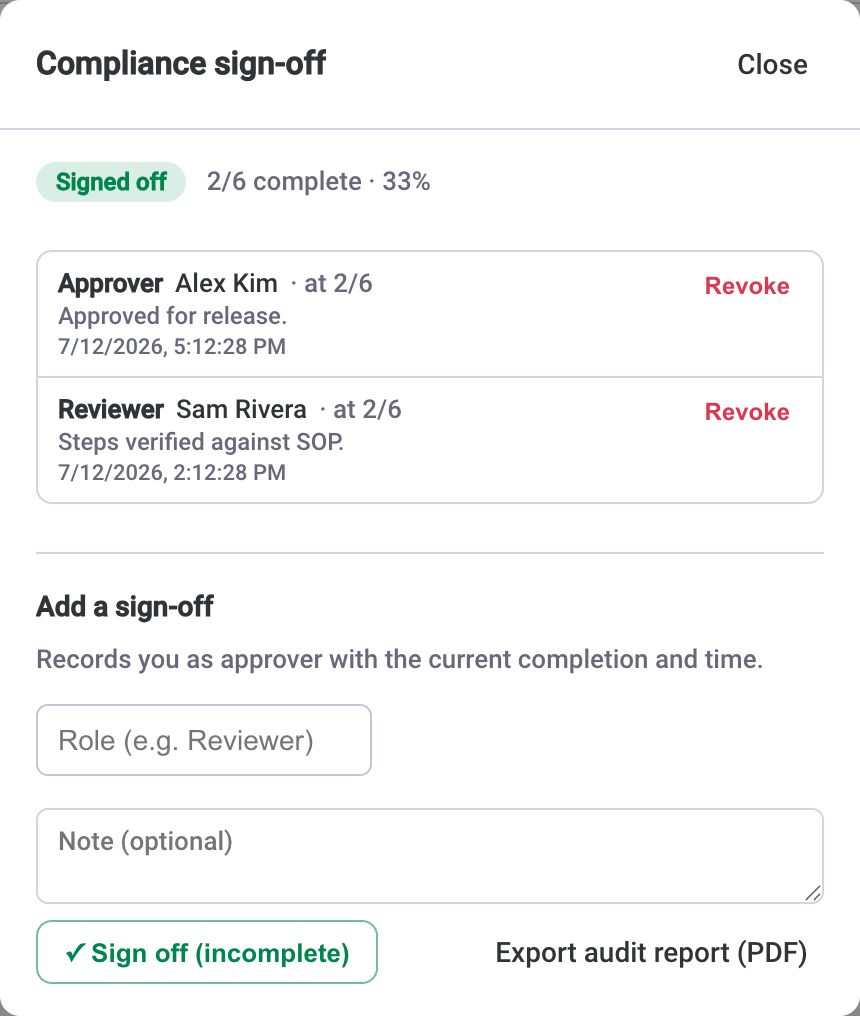
It pairs naturally with two other features. Approvals add a second pair of eyes on individual tasks that need review. Compliance sign-off certifies the whole checklist with the signer's role recorded — Reviewer, Approver — and stacks, so several people can certify in sequence. The sign-off guide covers that layer in full.
Lock structure protects what the procedure is. Restrict completion protects what "done" means. Most teams that need one need both.
What a view-only seat can and cannot do
monday.com's view-only seats exist so people can see work without changing it — auditors, clients, executives, colleagues from another department. The app follows that intent rather than working around it.
A view-only user can open any item and read its checklist in full: every task, its status, owner, due date and estimate, the sign-off state and the activity history. They can read what they could already see on the board, presented properly.
They cannot change anything. Checkboxes, status chips, dates, assignees and estimates are all disabled rather than merely hidden, and every write path refuses regardless of how it is reached. Settings, templates and markdown import are withheld entirely, because they are things a view-only seat cannot act on. Board-level reporting — the board view and the dashboard widget — is not available to a view-only seat, since it aggregates checklist data across the whole board.
The important part is that this is enforced, not just presented: the app checks the seat type from the signed session token monday.com issues, so it is not something a browser can be talked out of.
What to turn on, and when
The two settings are independent and apply per board, so the answer differs by what the board is for.
A team's working checklists — sprint tasks, personal routines, ad-hoc lists. Leave both off. The value here is flexibility, and governance would only get in the way.
A shared procedure — SOPs, onboarding, release runbooks. Turn on Lock structure. The steps are the agreed standard; completions are this run. See the SOP guide for modelling the procedure itself.
Work that has to be provable — the financial close, audits, safety checks, regulated procedures. Turn on both, assign every step that carries risk, and add Compliance sign-off. The combination is what makes the record hold up: the procedure cannot drift, each completion is an assertion by a named person, and the whole thing is certified with roles and timestamps.
Anything an outsider will see — client-facing boards, auditor access. The view-only behaviour handles this on its own; there is nothing to configure. Give the outsider a view-only seat and they get complete visibility with no ability to change anything.
One closing note on where the data sits: all of it lives in monday.com's own storage inside your account. There is no external database and nothing leaves monday.com, so the permissions above are governing data that never travels anywhere to begin with.